About Toronto Wireless

Tuesday, February 14, 2012

How to get started with iPhone photography

Posted By Ray Nicolini

Via iMore.com

With the new iPhone photography — or iPhoneography —  we have a lot of new iPhones users, and burgeoning photographers joining us. So, Leanna and I thought it would be a good idea to team up, take a moment, and go over the basics so that everyone gets up to speed just as quickly as possible. If you’re new to the iPhone or new to taking pictures, here’s everything you need to know to get started. Bookmark it. If you’re already an expert, save the link for a friend, and jump right into our iPhoneography Forum and share your work!

The iPhone 4S camera


The iPhone 4S has an 8 megapixel camera. A megapixel is 1 million pixels, so that means the iPhone 4S camera captures images that are 3264×2448 pixels in size. That’s enough to print an 8×10 picture at 300 dots per inch (dpi), or fairly high quality. (Low quality color images print at 150-300dpi, high quality at 300-600+ dpi)
The aperture on the iPhone 4S camera is f/2.4. The f stands for “focal ratio”. The lower the aperture, the more light can be let in so you can get better pictures in a wider range of settings, and the better depth-of-field can be obtained (where the subject is in focus, and elements in front of and behind the subject are blurred). The iPhone 4S also has 5 elements in the lens, helping to keep photos sharp.
An infrared (IR) filter helps produce more accurate color, and combines with software that optimizes dynamic range and white balance. So, you basically have a camera that could previously only be found on a dedicated point-and-shoot, built right into your phone.

Quick Camera access

Quickly launch your iPhone camera by double clicking home then tapping the camera button
With iOS 5, Apple’s made it easier and faster than ever to access your camera when you need it, even when your iPhone is locked, and even if you have a passcode set.
  • Double click the Home button
  • Tap the Camera button
That’s it. Two clicks and a tap and you’re in the Camera App and ready to shoot.

The Camera app

iphone_30_icon_cameraTap the Camera icon on your iPhone Home screen to launch the Camera app. The Camera app is the built-in, default way to take photos on your iPhone. Even in other apps, like Messages, if you tap the camera button to take a photo, you’ll be taken into the Camera app.
The Camera app opens to a live-view screen, similar to the LCD display you see on a point-and-shoot or DSLR camera. Controls are available right on the screen to take a photo, set the flash, access advanced options, and switch to the front-facing camera. Other controls are also available, including a hardware shutter and digital zoom. We’ll walk you through all of them.

Geo-tagging

When you first launch the Camera, you'll be asked for permission to use your current Location for geotagging
The first time you launch the Camera app, it will ask for your permission to use your current Location. That’s because, if you let it, your iPhone will store the GPS coordinates of every photo you take, so you can always easily refer back to it later. This can be great for keeping track of vacation shots, but not so great if you’re posting pictures online and don’t want the entire internet to know your address.
Whether you choose to enable geo-tagging for now or not, you can always change your mind later.

Taking a photo


To take a photo, either tap the Camera button or click the volume up control
There are two ways to take a photo with the Camera app. Both of them will fire the shutter and save a picture to your Camera Roll library.
  1. Tap the Camera button on the live view screen
  2. Click the volume up hardware button on the side of your iPhone
Bonus tip: If your iPhone headset has a volume up button, you can use it to take pictures remotely!

Pinch to Zoom

Pinch to zoom activates the digital zoom, and shows you the zoom slider
The iPhone has a mediocre digital zoom but if you absolutely have to zoom in, it can be very slightly better than nothing.
  • Touch your thumb and forefinger to the screen and pinch them together to zoom in.
  • Spread them apart to zoom back out.
Once you’ve activated the zoom feature, a slider will appear giving you linear control, if you prefer it.

Macro

You can automatically take macro shots by getting in close... though the focus seems glitchy on close ups
The iPhone will automatically adjust for macro photos. Just bring the camera close to the object you want to shoot and take the picture.
Note: There appears to be a glitch in iOS 5 that causes problems focusing extremely close for macro photos. It locks for a moment, then blurs again. Hopefully Apple is fixing this for the next update.

Changing auto-focus and auto-exposure

To focus and set exposure on an object, just tap on it. The square indicates the current target.
The iPhone camera has automatic focus, exposure, and facial recognition. It will always try to take the best possible photo it can, but it may not always know which area of the photo you want to target.
Changing the target is simple.
  • Tap the screen
That’s it. Any area you tap will be surrounded by a white square and your iPhone will automatically refocus and re-balance the exposure for that area.
If your iPhone detects a face — or up to 10 faces — it will put a green square around it and automatically refocus and optimize the image around the face.

Locking auto-focus/auto-exposure

Sometimes the auto-focus and auto-exposure on the iPhone is more blessing than curse. For example, when there’s a lot of movement, or when the center of the photo you want to take is exceptionally bright or dark. When that happens, you can lock both the auto-focus and auto-white balance so that, when you move the camera around, they no longer change.
  • Place your camera one the area that has the focus and exposure you want to lock onto to
  • Tap the square to make sure the focus and white balance are set.
  • Hold the square with your finger until it turns blue and pulsates.
The words AE/AF Lock will appear at the bottom the screen to confirm you’ve done it correctly. Move the camera and take your photos without worrying about the auto-focus or auto-exposure balance any more.
To remove the AR/AF Lock, just tap the screen outside the square.

Setting the flash

To toggle the LED flash between On, Auto, and Off, tap the current setting at the top left of the live screen
Your iPhone has an LED Flash that can be set to off, auto, and on. It’s not a great flash and as will any point-and-shoot camera, light is your friend — especially lot of daylight. If you’re in a really dark place, however, and really want or need a picture, it’s easy to turn the flash on.
  • Tap the Flash button at the top left of the live view screen.
  • Tap the On button to turn the flash on, or the **Auto button* to put it into automatic mode.

Taking HDR photos

To enable High Dynamic Range, tap Options, then toggle HDR to On.
HDR stands for High Dynamic Range and involves taking a series of pictures, one right after the other, both slightly overexposed and slightly underexposed, and combining them together to reveal more light and shadow information than a standard single-exposure photo would allow. So basically, you can see detail in the bright sky and in the shadow under the tree, rather than having one blown out or the other lost to black.
  • Tap the Options button at the top center of the live view screen.
  • Slide the HDR toggle to On.
The bottom of the screen will show HDR so you’ll know it’s enabled.
Note: The multiple exposures take a short amount of time to combine, so after you take an HDR photo you’ll see a your iPhone say “Saving HDR”. If you need to take a lot of photos quickly, you’ll want to make sure HDR is set to Off.
An example of a regular vs. HDR photo, with the HDR photo on the right revealing far greater detail in the sky

Displaying the grid

how to use the rule of thirds
The grid allows you to use the "rule of thirds" to better compose your photos
The grid is useful to help you align your photographs and achieve better compositions. For example, by using the “rule of thirds”.
  • Tap the Options button at the top center of the live view screen.
  • Slide the Grid toggle to On.
Two sets of vertical crossed by two sets of horizontal lines will divide your screen, and you’ll be ready to compose your shot.

Camera Roll and Photo Stream

Photo Stream is a great way to backup and instantly get all your photos onto all your Apple devices... just handle with discretion for now.
Once you’ve taken a photo, it gets stores in your Camera Roll, and optionally your Photo Stream.
To access the Camera Roll from inside the Camera App:
  • Tap the Thumbnail button next to the camera button.
To access the Camera Roll from the Home screen:
  • Launch the built-in Photos app
  • Tap the the Camera Roll tab.
Photo Stream is part of iCloud and keeps the most recent photos from your Camera Roll, up to 1000 of them and for up to 1 month, in a special album that’s stored up to Apple’s servers and pushed down to your other iOS 5 devices. It can also stream photos to an Apple TV 2 without keeping any local copies, and will store all your photos, without limit of number and time, in iPhoto or Aperture on Mac, and on a Windows PC.
Think of it as a photo only (no video) duplicate of all the Camera Rolls of all your iOS devices — including photos you’ve saved to the Camera Roll from email and the web — all in one place.
Unlike Camera Roll, however, you currently can’t delete photos from Photo Stream (that willchange with iOS 5.1 later this spring). That means if you take any risqué photos you don’t want store online, you’ll have to reset your entire Photo Stream via iCloud.com in order to get rid of them.

Photo management and editing

You can manage your photos, including emailing, tweeting, iMessaging, deleting, creating and filing into folders, and even basic editing like red-eye removal, rotation, cropping, and auto-ehance, right in the built-in Photos app. There are also several excellent photo editing apps in the App Store.
We’ll cover more on that in a future article. For now, we just want you to focus on taking photos.

Other Camera apps

A sampling of Martin Reisch's (@safesolvent) awe-inspiring Instagram gallery.
While the basic, built-in iPhone Camera app is all you really need to get started, there are several other well regarded Camera apps in the App Store. They typically provide more or better features than the built in app. Here are two of our current favorites.
  • Instagram is a popular, free iPhone app for applying distinctive filters to your photos, squaring them, and quickly sharing them to the Instagram network, as well as via Twitter and Facebook. You can also see some amazing examples of other people’s iPhoneography. Read more – Download now
  • Camera+ has a lot of great features, including separate focus and exposure settings, image stabilization, enhanced zoom, scene modes, and a bevy of sharing options. –Read more – Download now

What’s next

Now that you have a basic idea how the iPhone camera works, go shoot some photos. Shoottons of photos. Still life, portraits, landscapes, wild life, sports, anything and everything that catches your fancy. The secret to success here is definitely practice!

Samsung’s Galaxy Note is the most useless phone I’ve used


Posted By Ray Nicolini
Via BGR.com

Samsung and AT&T are getting ready to launch a new smartphone, superphone, phablet or whatever else you want to call it, and I picked one up earlier today. It’s the first time I have used or even held the device personally, and I really need to share some immediate thoughts even though a full review is forthcoming. This is a phone, after using it for a few hours, that feels like it is too big to be taken seriously. That’s the end of it. I don’t care if you like large screens on mobile devices, I don’t care if you love Android, and I don’t care if you love 4G LTE — this is a device fit for use only by such a small subset of the human population that I can’t fathom how AT&T and Samsung are putting so much marketing resources behind it. Check out images of the Galaxy Note in the gallery below, and the rest of my thoughts follow after the break.
The Galaxy Note essentially has everything you’d want in a smartphone: a great dual-core processor, a solid camera, a beautiful display and good build quality, and it runs on AT&T’s new 4G LTE network that delivers incredibly fast downloads speeds. Plus the battery seems actually decent so far, which is a triumph for modern smartphones.
Throw all of that right out the window.
The phone is too big. You will look stupid talking on it, people will laugh at you, and you’ll be unhappy if you buy it. I really can’t get around this, unfortunately, because Samsung pushed things way too far this time.
You can’t use it one-handed, and I can’t even type on it easily with two hands. I’m almost offended by this product, and I love a lot of what Samsung is doing — in fact, the company’s current flagship is my favorite Android smartphone in the world. But the Galaxy Note just feels like a joke. And the worst part? Look at the display and how it’s manufactured and designed. See any resemblances to anything else?
I feel like no one else is saying this, and since I’ve not ever been one to hold back what’s on my mind I absolutely will — enough is enough. I’ve had it with incremental updates to Android smartphones every two weeks, I’ve had it with the super-sized ridiculousness, and I’ve had it with all of these marketing gimmicks. Just focus on a quality product, and you won’t have to release eight “flagship” models a year.
But you have a stylus that comes with it, so I guess that makes up for any similarities with rival devices. Kind of like those lollipops you’d get at the dentist after someone just went Mike Tyson on your tooth.

Monday, February 13, 2012

The BlackBerry to iPhone migration, are App's better than Security

Posted by Ray Nicolini

The competitiveness between Apple and RIM has always gone the way of pleasure over business. RIM has always had a competitive advantage over all other smartphone makers in that its security features are second to none. The problem always seemed to be with RIM's inability to connect with the everyday consumer who was looking for a phone that could run all the cool apps their friends were playing. Although this has changed over the past few months it's still an area that all smartphone makers want to capitalize on.

In addition to security, connecting with the corporate enterprise level market was also an advantage that RIM had. In fact, it may be RIM's biggest edge over anyone else in the smartphone market. RIM has been riding the wave of enterprise domination for a long time now. The question now is has that wave crashed?

Over the past week a new disturbing trend has started that should leave anyone who appreciates BlackBerry devices, wondering what's going on. More and more organizations are migrating from their BlackBerry devices to Apple's iPhone. To some this may seem like no big deal, but lets take a look at the big picture here. The first problem that arises is that these organizations are not small.

According to the New York Times Halliburton, one of the world's largest oilfield services companies has dropped BlackBerry as their primary device used with in their organization. This makes 4,500 BlackBerry devices replaced for iPhones. In addition The National Oceanic and Atmospheric Administration , ( NOAA) also announced that they to would be moving their 3,000 BlackBerry users to iPhones. That's 7,500 BlackBerry devices gone in one week. Lets not jump the gun and sound the alarms just yet, there are reasons for this sudden shift.

Application Development

Application development has always been a dry area for RIM's BlackBerry. For the longest time there really wasn't a passion to develop applications for a BlackBerry device. The good news is that over the past year RIM has made some really good progress in this area. While all of that is good the problem is that organizations like apps just like the everyday consumer does. If a device has an application that can run either their proprietary software or boost their productivity they are more likely to go to that device. The key here for RIM is to continue to encourage development for BlackBerry and continue to provide developers with the tools and support that they need to develop high quality apps.

A Peaceful Coexistence With Microsoft

Lets face it, the vast majority of organizations use Microsoft products to perform their day to day office activities. So the ability to integrate seamlessly with Microsoft products is a big plus. Organizations like the plug and play approach of Activesync against their Exchange servers. They like the ability to run a Micrsoft Lync application from their mobile device. The good news is that RIM has already take steps to address this issue with the recent announcement of BlackBerry® Business Cloud Services for Microsoft Office 365.

A Poor Decision By Organizations

So what does all this mean. It means that once again more organizations are sacrificing flexibility and productivity over security. Some would argue if that is even a big deal. One only has to wait until the first major security breach is announced, because some corporate executive wanted to download the app that changed the color of their fonts, but was really a hidden key-logger. Lets not forget the immaturity of management tools for the iPhone, BES far more mature and robust than any other solution on the market today.

Again, CIO's and CEO's need to be asking themselves whats most important for their organization. Are the bells and whistles from the iPhone really worth moving from the durability and security that the BlackBerry has to offer? Is amusement over security really an ideal trade off?

Sunday, February 12, 2012

Instagram introduces Lux, a new way to enhance your photos

Posted By Ray Nicolini
Instagram update introduces Lux, a new way to enhance your photos
Instagram, the wildly popular photo filtering and social sharing app for iPhone, has been updated with a new enhancement feature called Lux. With a tap of a button, Lux will apply an HDR (High Dynamic Range)-like effect to your photo that lightens shadows, darkens highlights and increases contrast. It does a phenomenal job.
Apple included an enhancement feature in the iOS 5 Photos app, but it’s mediocre at best. The problem with Apple’s version is that it’s supposed to fix all types of photos, but Lux focuses specifically on one issue and does it well. Lux is best used on landscapes that have areas that are too dark and too light — photos that you should’ve probably taken with HDR turned on, but didn’t, and now need to fix. Here’s an example of Lux on a photo of train tracks that I took.
Instagram update introduces Lux, a new way to enhance your photos
In addition to Lux, Instagram has also added a new filter called “Sierra”, which frames and lightens a picture, and they’ve refreshed the look of the app in general, and the icons on the tab bar as well.
If you’ve taken any great shots with the new Lux enhancement or Sierra filter, share them in our Photography Forum — we’d love to see them!

Free – Download Now

via iMore.com

Thursday, February 9, 2012

Dell Voice offers VoIP, but only to Canadians


Posted By Ray Nicolini

Dell's teamed up with Fongo to offer Dell Voice, a VoIP app that's available exclusively in Canada. It's currently available for AndroidiOS and Windows (Desktop), enabling everyone to shoot the breeze about Dustin Penner without charges. You'll get a local phone number that'll let you call all the big cities (and most of the smaller ones), caller ID, voice-mail, 911 service and long-distance calling for no additional charge. Call credit costs 2c per minute, with each call averaging out to 1MB of data. Canadians clutching to their BlackBerries will be relieved to know that the app will roll out on RIM's handsets next month.

Wednesday, February 8, 2012

Why the iPhone is worse than a BlackBerry


Posted By Ray Nicolini
Via BGR.com
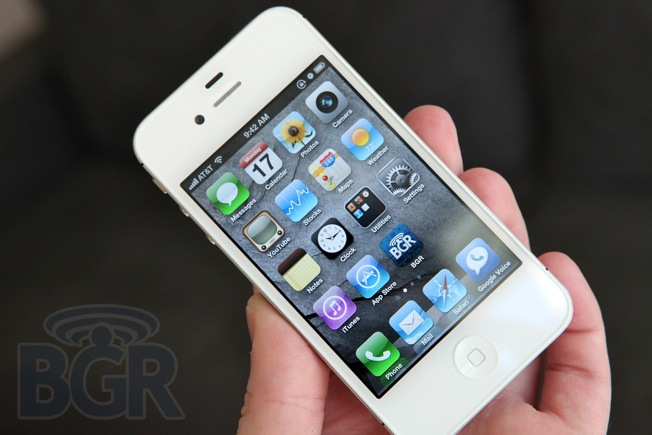
I love my iPhone. In fact, I’ve loved every iPhone Apple has launched since the first model was unveiled in 2007. Slowly but surely, Apple has introduced new features and eliminated upon almost every major gripe people had with iOS to push the limits of what we expect from a modern smartphone, and also to keep the platform on par with or even ahead of the competition. Copy and paste, MMS, background apps, multitasking, notifications, folders and much more have been added over time. There is one thing that makes me hate my iPhone every single day though, and I hope Apple is going to address it soon. I need more control over my alerts.
I really wish Apple would create an area in settings, or even add on to the notifications options, to allow users to set custom alert settings for different things. For instance, I’d love it if I could have different profile modes with settings for vibrate, ring, volume and ringtone much like how RIM’s BlackBerry phones have worked for ages. And there’s plenty of room for improvement beyond what RIM is doing in its BlackBerry OS… just look at how great Motorola’s Smart Actions feature is. Apple could totally take this one step further and allow location-based profiles for alerts, system settings, and more. When I get home, I want Bluetooth to turn off automatically, and I want my alert profile to change, for instance.
I might want my phone to vibrate for almost all alerts, and sometimes I want my phone ring as well. Sometimes I want everything to be on silent and have my phone ring only if it’s a certain person calling or messaging me. I just want more control over how my phone acts in this respect — it’s something that is half-assed in its current state. Sure, you can set custom alert tones for SMS and iMessage, and you can set custom ringers for specific contacts as well, but this is all being fed through a very rudimentary ”your phone is either on ring or vibrate, you idiot” switch.
If Apple does decide to introduce some sort of profile control, it will fix one of the most glaring holes still in iOS, in my view. We’ll get there eventually, I believe.

Saturday, February 4, 2012

ADZero bamboo smartphone prototypes hands-on (video)


Posted By Ray Nicolini

Via Engadget.com
We were so beguiled by AD's bamboo-bound smartphone that we had to track down the designer to get some hands-on time with these work-in-progress prototypes. We met up with Kieron-Scott Woodhouse (pun unintended) and he offered to bring along several of the latest prototypes for us to get to grips with. While the finished product will arrive in the bamboo material but smoked to the darker finish. The darker model's button layout is also closer to what we can expect on the final device. The ADZero is still set to launch between the end of 2012 and the start of 2013. Sustainable smartphone fans can browse through our gallery below, or read up on the phone's journey -- and our impressions -- right after the break.


The ADZero may hit plenty of sweet spots for smartphone buyers looking for something a little different. Unlike other wooden offerings, it uses fully sustainable bamboo, is British-designed, with special attention paid to the camera unit, which lays claim to its very own ring flash. It's also running on Android. In a clever move, the technical specifications beneath that stylish shell aren't set in stone, but promise to be comparable to what we'll be seeing on other handsets by the end of the year. The good news is that it'll be running Ice Cream Sandwich -- meaning those physical buttons you see below the screen will disappear in the final model, replaced by on-screen versions like those used on the Galaxy Nexus. The OS will also pick up its own in-house skin, ADAOS, which, at least from the preliminary sketches we've seen, looks unlikely to choke up the typical Android experience.

Unfortunately, the prototype running the latest version of the software was already winging its way back to China, but we did get to spend sometime pawing at prototype models that are -- hardware-wise -- very close to the finished article. The bamboo unibody makes the phone light, and it's an unusual sensation to hold a phone built from an organic material. The designer makes no apologies for the fact that the toughened material may pick up some minor bumps and bruises -- that's part of the concept.

Kieron-Scott, who already knew a thing or two about phones, was spotted by Chinese manufacturer AD following his prototype sketches of Sony Ericsson's smartphone series. His Xperia LED concept (toting a similar ring flash to the one found here) got him noticed and he started work on a series of concept designs, one of which made it as far as a physical design model. This metallic-enamel phone made of copper and Corian, a plastic that has a tactile finish similar to stone. Woodhouse said he went for copper as he was looking to use a material that "told a story and would improve with wear; copper would react with a person's skin." The project moved on to more sustainable options, with bamboo becoming a strong candidate, due to its providence in China -- where the company AD is based. The bamboo currently in use on prototypes has been treated for four years to improve its strength -- and obeys EU regulations on sustainability. Hopefully, the rest of the phone will aim for similar Captain Planet credentials.

Unsurprisingly, given the aforementioned concept designs, Kieron-Scott said he admires Sony Ericsson's current hardware run, although he seemed intrigued by the unibody stylings of the Nokia Lumia 800 we had with us during the interview. AD still plans to launch the device in both the UK and China, with pricing likely to be in-line with other high-end smartphones. Additionally, it'll arrive in boutique stores, rather than mainstream phone vendors, in an effort to capitalize on the phone's unique appearance. The design's certainly got us intrigued, and we plan on getting more time with the ADZero once working models are closer to the finish line.

The best Canadian Android Phones - As of Feb. 2, 2012


Posted By Ray Nicolini
The Best Canadian Android Phones
Welcome to the best Canadian Android Phones as of Feb. 4, 2012. Or you can call them our favorite Android phones. Or the top Android phones. Really, call them whatever you want. Here's what you're getting: Our unabashed, unapologetic and unequivocal list of what we consider to be the best Android smartphones available on the three major Canadian carriers today.
Just like with our American list, you can't have this sort of thing without controversy. But considering that we're talking Canadian phones and Canadian readers, we also expect the discussion to be much more civil. 

The best phone on Rogers, Bell and TELUS

Verizon Galaxy Nexus
This one was a rather easy choice. Sure, there are plenty of other devices to choose from, but the Samsung Galaxy Nexus takes the cake. Really, you can stop reading this now. None of the other phones really matter at this point given it's a GSM Galaxy Nexus you'll have in your hands, and all three carriers sell it for the exact same $160, unlike the US where a GSM version is thus far -- non-existent.

Honorable mention for Rogers - Samsung Galaxy S II LTE

Android Central
If the Samsung Galaxy Nexus isn't your thing, a great alternative for Rogers is the Samsung Galaxy S II LTE. With it, you're getting a full 4.5 -inch display, 8MP camera and 16GB of internal storage. Plus, a 1.5GHz processor and eventually, ICS to go along with it all. A nice little package indeed.

Worth a look: Motorola RAZR, HTC Raider.

Honorable mention for Bell - HTC Raider

Android Central
The HTC Raider offers up a solid design and gives you that well-built feeling without sacrificing any speed. Its snappy dual-core processor and large display are a joy to use, and it's a great multi-media powerhouse. Did we mention LTE? It's certainly a plus if you live in a Bell LTE coverage area.

Worth a look: Samsung Galaxy S II, LG Optimus 4G LTE

Honorable mention for TELUS - 4G Samsung Galaxy S II X

Samsung Galaxy S II Epic 4G Touch
Seemingly following in Sprint's footsteps in a race for the longest device name ever, TELUS has dubbed their Samsung Galaxy S II the 4G Samsung Galaxy S II X. We won't question why, aside from the Galaxy Nexus, it's the best phone in their line up right now.

Worth a look: HTC Amaze 4G. Coming soon: Samsung Galaxy Note

Thursday, February 2, 2012

Microsoft Has Huge Changes in Store for Windows Phone 8 [REPORT]


Posted By Ray Nicolini
windows-phone-big-600Brace yourself, Windows Phone users, because everything’s going to change.
An internal Microsoft video that was supposedly leaked to a website reveals that the entire mobile operating system will be revamped later this year to better integrate it with the upcoming Windows 8. Many abilities will be added and some software will be junked, but if the report is true one thing’s for sure: Windows Phone 8 will be the biggest leap forward for the mobile OS to date.
PocketNow reports that Windows Phone 8, code-named Apollo and scheduled for after the next update (“Tango”) will greatly expand the hardware options available to Microsoft’s manufacturing partners. Right now Microsoft keeps tight guidelines on Windows Phone to avoid Android‘s “fragmentation” problem, but Windows Phone 8 will expand support to four different screen resolutions, multicore processors and removable microSD cards.
Another notable addition: support for near-field communication (NFC), the same wireless tech used for mobile payments. The leaked video describes Windows Phone’s “wallet experience” as being potentially carrier-branded and controlled, and it’ll work across multiple platforms, letting the phone share content with PCs and tablets.
More fundamentally, Windows Phone 8 will share many software components with its big brother, Windows 8. Developers will apparently be able to reuse most of their code when porting an app from desktop to mobile. The kernel, networking stacks, security and multimedia elements will all have some interchangeability.
Microsoft is planning a few tricks to make Windows Phone more data efficient. A new feature called DataSmart will prioritize Wi-Fi connections, tying into Bing Maps to find nearby hotspots and automatically joining carrier owned ones. Enhancements in the mobile version of Internet Explorer 10 aims to reduce website data consumption by up to 30%.
It also looks like the fruits of Microsoft’s acquisition of Skype are coming to bear. Windows Phone 8 will have deep Skype integration, the report says, so Skype calls will behave more closely to regular voice calls.
Enterprise customers will be interested in the security enhancements, namely native BitLocker encryption, which is said to match current 128-bit disk encryption on today’s Windows 7 machines.
Windows Phone users will soon say goodbye to the Zune name forever, though. The Zune desktop client that’s used to sync music and media is getting thrown out in favor of a new version of ActiveSync, the report says. The Xbox companion app, currently part of Windows Phone, will get a partner on the desktop. Microsoft’s cloud service, SkyDrive, will handle wireless syncing of media across devices.
All of this jibes quite closely with where Windows Phone is going, Microsoft’s overall strategy with its platform. Interestingly, the report says the video, hosted by Microsoft Windows Phone manager Joe Belfiore, was intended for employees at Nokia. That might indicate Nokia is getting a certain amount of special treatment among Microsoft’s hardware partners, though it’s not known if similar videos were made for the likes of HTCand Samsung.
Microsoft declined to comment on the report.
Do the rumored coming changes to Windows Phone make you more inclined to get one? Or is this too little, too late for Microsoft phones? Let us know in the comments.
via Mashable.com